Instagram DM Automation: Turn Comments into Conversations
Instagram has become more than a platform for sharing photos and videos. For many businesses, it is now a place where customers ask questions, request prices, look for product details, book services, and discover brands.
But there is a problem.
As your Instagram engagement grows, manually responding to every comment and sending individual DMs can become difficult.
Someone comments “PRICE.”
Another asks “DETAILS?”
Someone else writes “LINK.”
You have to notice the comment, open the conversation, type a response, send the required information, and repeat the process.
This is where Instagram DM automation can help.
With an Instagram DM automation system, businesses can create rules that automatically respond to specific comments and continue the conversation through Direct Messages.
In this guide, we'll explain what Instagram DM automation is, how it works, what you can automate with TheQuickAssist, and how businesses can use it to manage Instagram conversations more efficiently.
What Is Instagram DM Automation?
Instagram DM automation is a way to automatically respond to Instagram interactions based on predefined rules.
For example, imagine you publish an Instagram post promoting a new product.
At the end of the caption, you write:
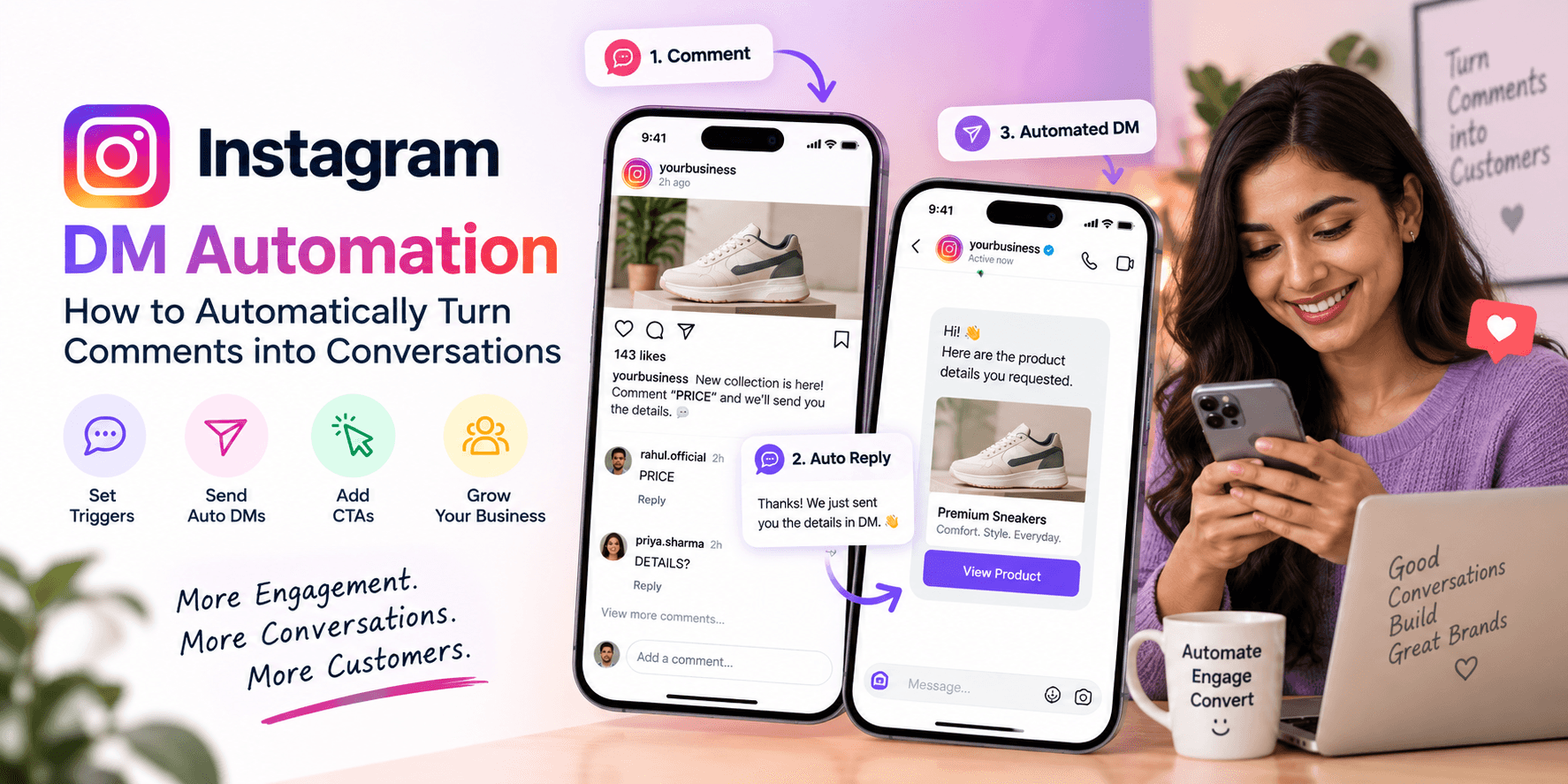
Comment “PRICE” and we'll send you the details.
A customer comments:
PRICE
Instead of manually checking the comment and sending a message, your automation can detect the trigger word and automatically start the configured response.
For example:
Customer comment:
“PRICE”
↓
Automated comment reply:
“Thanks! We just sent you the details in DM.”
↓
Automated DM:
“Hi! 👋 Here are the product details you requested.”
↓
CTA:
View Product
The entire process can happen automatically based on the rule you created.
How Does Instagram DM Automation Work?
The basic concept is simple:
Comment → Trigger → Response → DM → Action
With TheQuickAssist, you can build this workflow by configuring different parts of the automation.
1. Choose Where the Automation Should Run
You can decide whether your automation should apply to:
- A specific Instagram post or reel
- All posts and reels
- Your next post
This allows you to create automation for a particular campaign instead of applying the same rule everywhere.
2. Select Your Trigger Keywords
You decide which words should activate the automation.
For example:
- PRICE
- LINK
- INFO
- DETAILS
- DEMO
- BOOK
When a relevant comment contains a configured trigger keyword, the automation can respond according to your settings.
3. Choose the Response Channel
You can decide whether the automation should send:
- Direct Message
- Comment Reply
- Both
This gives you control over how the conversation starts.
4. Create Your Messages
Write the messages that should be sent automatically.
You can also create multiple DM responses so that the same message isn't repeated every time.
5. Add a CTA
If you want users to take another action, you can add a button to the DM.
For example:
- Visit Website
- Book a Demo
- View Profile
- Learn More
6. Review and Activate
Before turning the automation on, you can review your setup and check the target, trigger, messages, and other settings.
Choose Exactly Where Your Automation Runs
Not every Instagram post needs the same automation.
A real estate company might want an automation only on a post promoting one property.
An e-commerce business might want a specific automation for a product campaign.
A coaching business might want an automation for a post promoting a webinar.
TheQuickAssist allows you to choose where the automation should run.
Specific Post / Reel
Select an individual post or reel and attach your automation to it.
This is useful for campaigns where the content has a specific CTA.
For example:
Comment BROCHURE to receive the property details.
All Posts & Reels
If you want the same automation to apply across your Instagram content, you can select all posts and reels.
Next Post
You can also configure an automation for your next post.
This can be useful when preparing an upcoming campaign.
Use Trigger Keywords to Start the Conversation
The trigger keyword is what tells your automation when to respond.
Instead of automatically responding to every comment, you can define specific keywords.
| Keyword | Possible Use |
|---|---|
| PRICE | Send pricing information |
| LINK | Send a website or product link |
| INFO | Send additional information |
| DEMO | Send demo details |
| BOOK | Send a booking link |
| BROCHURE | Send property or product details |
You can add multiple trigger keywords depending on your campaign.
What About Unwanted Comments?
TheQuickAssist also provides excluded keywords.
Comments containing an excluded keyword can be ignored even if they contain a trigger keyword.
This gives you additional control over when the automation should run.
Choose Between DM, Comment Reply, or Both
Not every business wants the same type of automated response.
That's why you can choose where the response should be sent.
Direct Message
Use a DM when you want to continue the conversation privately.
“Thanks for your interest! We've sent the details to your DM.”
Comment Reply
Use a comment reply when you want to respond directly under the user's comment.
“We've shared the details with you!”
Both
You can also use both.
The public comment acknowledges the interaction while the DM provides the actual information.
For example:
Comment reply:
“We've sent the details to your DM! 👋”
DM:
“Hi! Here's everything you requested.”
This can create a smoother transition from public engagement to private conversation.
Create Up to 3 DM Response Variations
Automated messages can become repetitive when the exact same response is sent every time.
TheQuickAssist allows you to add up to three DM responses.
For example:
Response 1
“Hey! 👋 Here are the details you requested.”
Response 2
“Thanks for commenting! We've sent the information you were looking for.”
Response 3
“Got it! Check your DM for the details.”
The responses can be sent in a random order, giving your automated replies more variation.
This is particularly useful when a post receives a high number of comments.
Add a CTA Button to Your DM
Sending information is often not the final goal.
You may want the person to visit your website, book a demo, view a product, or take another action.
That's where the DM button can help.
You can add an optional button underneath your automated DM and connect it to a destination URL.
For example:
- E-commerce: View Product → Product page
- SaaS: Book a Demo → Demo booking page
- Real Estate: View Property → Property listing
- Service Business: Learn More → Service page
Instead of ending the conversation with a message, you can give the user a clear next step.
Use the Follower Gate
Another option available in Instagram DM Automation is the Follower Gate.
You can enable this setting if you want to encourage non-followers to follow your account before receiving the main message.
For example:
User comments:
“PRICE”
If the user isn't following your account, they can receive a separate message such as:
“Please follow us first, then comment again to receive the details.”
Once the required condition is met, the user can receive the main automated response.
This creates a simple flow:
Comment → Follow → Receive Information → Take Action
Review Your Automation Before Activating It
Automation works best when you know exactly what you've configured.
Before activating your rule, TheQuickAssist provides a review screen where you can check your automation.
You can review details such as:
- Target post or reel
- Trigger
- DM response
- Comment response
- Follower gate
- Other automation settings
This gives you an opportunity to check the complete workflow before activation.
How Businesses Can Use Instagram DM Automation
Instagram DM automation can be useful across different industries because the basic workflow can be adapted to different types of content.
1. E-commerce
A business launches a product and posts about it on Instagram.
CTA:
Comment PRICE for details.
The automation can respond with the product information and provide a button to view the product.
2. Real Estate
A real estate company publishes a property post.
CTA:
Comment BROCHURE to get the property details.
The automation can respond to the keyword and direct the user toward the relevant information.
3. Education
An education business promotes a new course.
CTA:
Comment COURSE to get the details.
The automation can send information about the course and direct the user to the relevant page.
4. SaaS Businesses
A SaaS company promotes a new feature or product.
CTA:
Comment DEMO to book a demo.
The automated DM can provide the requested information and include a booking CTA.
5. Coaches and Consultants
A coach publishes content promoting a consultation.
CTA:
Comment BOOK to get started.
The automated DM can provide the booking link.
6. Promotional Campaigns
Businesses running an Instagram offer can use keywords such as:
- OFFER
- DISCOUNT
- SALE
The automation can send the relevant promotional information when users comment.
Instagram DM Automation vs. Manual Replies
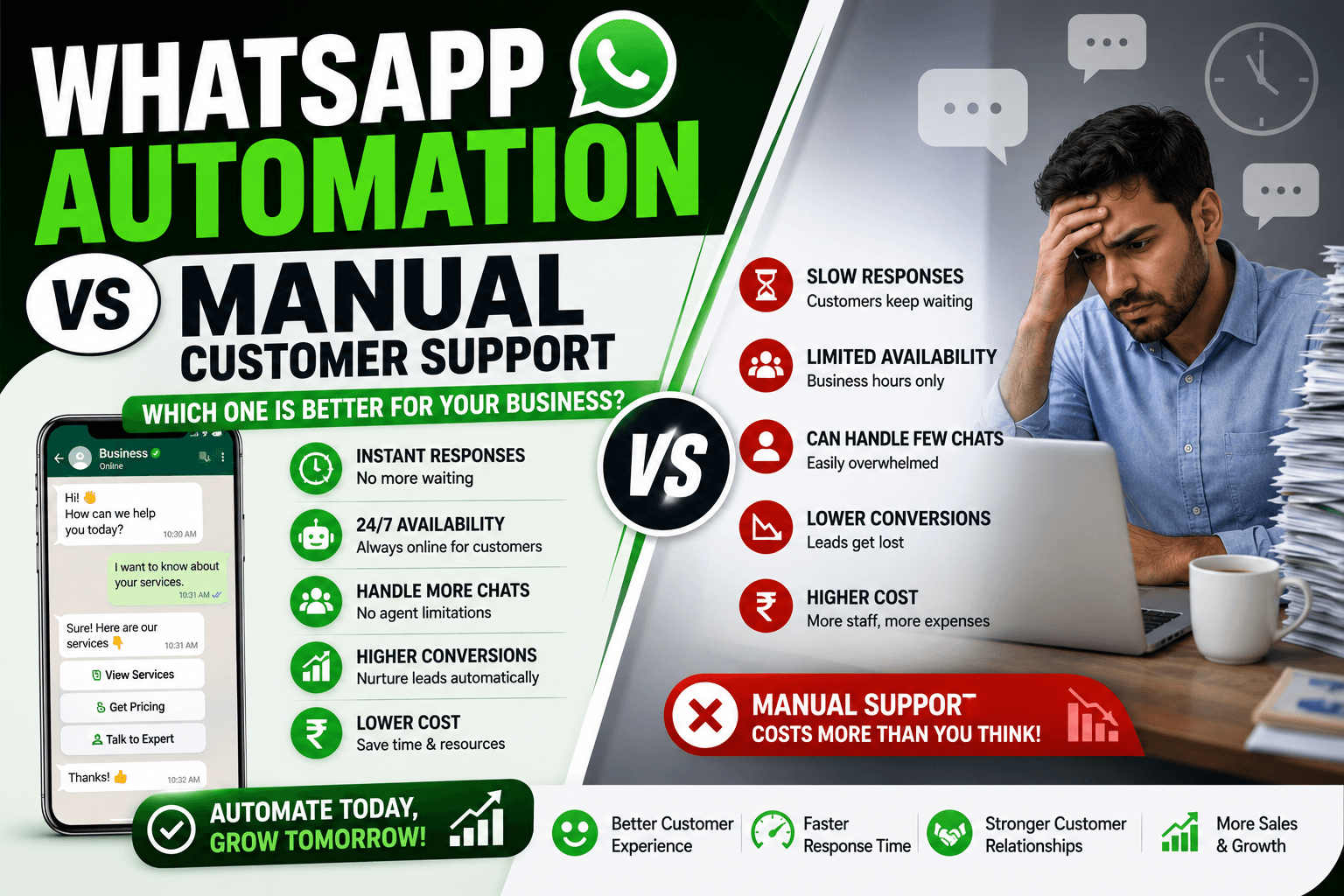
Manual replies can work when the volume of comments is small. But as engagement increases, businesses may need a more structured way to handle repetitive interactions.
| Manual Replies | Instagram DM Automation |
|---|---|
| Reply to comments individually | Trigger responses automatically |
| Manually start conversations | Automatically send configured DMs |
| Copy and paste repetitive messages | Create multiple response variations |
| Manually share links | Add CTA buttons |
| Handle every matching comment yourself | Use keyword-based triggers |
| Difficult to maintain at scale | Create reusable automation rules |
Automation doesn't mean every conversation needs to be automated.
For more complex questions or conversations that require personal attention, a human response can still be important.
The goal is to automate repetitive interactions while keeping human support available when it matters.
How to Create an Instagram DM Automation with TheQuickAssist
Ready to create one?
Here's the basic process.
Step 1: Open Instagram DM Automation
Log in to your TheQuickAssist account and open:
Instagram → DM Automation
Step 2: Create a New Automation
Start creating a new comment-to-DM automation rule.
Step 3: Give Your Automation a Name
Choose a name that makes the automation easy to identify.
For example:
- Summer Product Campaign
- Real Estate Brochure
- Demo Campaign
Step 4: Choose Where It Should Run
Select:
- Specific Post / Reel
- All Posts & Reels
- Next Post
Step 5: Select Your Post
If you've selected a specific post or reel, choose the content where you want the automation to run.
Step 6: Add Trigger Keywords
Add words that should activate the automation.
For example:
- PRICE
- INFO
- DEMO
- LINK
You can also add excluded keywords where necessary.
Step 7: Choose Your Response Type
Select:
- Direct Message
- Comment Reply
- Both
Step 8: Write Your Responses
Create your DM and comment responses.
You can add up to three DM variations.
Step 9: Add a CTA Button
If required, add a button and destination URL to guide users to the next step.
Step 10: Configure the Follower Gate
If you want to use the follower condition, enable the Follower Gate and write your non-follower message.
Step 11: Review Your Automation
Check your target, trigger, responses, and advanced settings.
Step 12: Activate
Once everything looks correct, activate your automation.
Your rule is now ready to handle matching Instagram interactions according to the conditions you've configured.
Best Practices for Instagram DM Automation
Automation can save time, but the quality of the automation still depends on how you set it up.
Keep Trigger Keywords Simple
Use words your audience is naturally likely to type.
PRICE, INFO, LINK, and DEMO are easier to understand than complicated phrases.
Keep Your First DM Concise
The first message doesn't need to explain everything.
Give the user the information they asked for and provide a clear next step.
Make Your CTA Relevant
Don't send someone looking for a product brochure to an unrelated homepage.
Match your CTA to the user's intent.
Don't Automate Everything
Some questions need a human response.
Use automation for repetitive and predictable interactions while allowing more complex conversations to move to a human.
Test Your Automation
Before promoting a campaign, test the complete journey:
Comment → Trigger → Comment Reply → DM → CTA
Make sure each step behaves as expected.
Frequently Asked Questions
What is Instagram DM automation?
Instagram DM automation allows businesses to automatically respond to specific Instagram interactions using predefined rules, triggers, and messages.
Can Instagram DM automation respond to comments?
Yes. TheQuickAssist allows you to configure automated comment replies and direct messages based on trigger keywords.
Can I automate a specific Instagram post?
Yes. You can attach an automation to a specific post or reel.
Can one automation work across multiple posts?
Yes. Depending on your setup, you can choose to apply the automation across posts and reels rather than limiting it to one specific post.
Can I create different DM responses?
Yes. TheQuickAssist allows you to create up to three DM response variations.
Can I send both a comment reply and a DM?
Yes. You can choose Both as the response channel.
Can I add a link to the automated DM?
Yes. You can add an optional CTA button with a destination URL.
Can I ask users to follow before receiving the DM?
Yes. The Follower Gate allows you to configure a separate message for users who aren't following your account.
Does Instagram DM automation replace human conversations?
No. Automation is most useful for repetitive and predictable interactions. Businesses can still handle conversations that require personal assistance.
Turn Instagram Comments into Conversations
Instagram engagement is valuable, but a comment doesn't have to be the end of the interaction.
A simple comment such as “PRICE”, “INFO”, or “DEMO” can become the beginning of a conversation.
With Instagram DM Automation, you can create a workflow that connects those interactions:
Comment → Trigger → Reply → DM → CTA
With TheQuickAssist, you can choose where the automation runs, define trigger keywords, send comment replies and DMs, create response variations, add CTA buttons, and configure a follower gate.
Instead of manually handling every repetitive interaction, you can build the workflow once and let the automation handle matching comments according to your rules.
Ready to Automate Your Instagram Conversations?
Create your Instagram DM Automation with TheQuickAssist.